Android 13, 14, 15 & 16
How to Allow Restricted Settings on Android 13+ (Fix Greyed-Out Accessibility)
Starting with Android 13, Google blocks Accessibility and Notification Access for sideloaded apps until you manually allow restricted settings. Follow these 3 steps to unlock it.
Step-by-Step Fix


Unlock "Restricted Setting" in 60 Seconds
Why is the 3-dot menu missing? On Android 13, 14, 15, and 16, the "Allow restricted settings" option inside App Info stays hidden until you first attempt to turn on Accessibility or Notification Access and trigger the security popup.
- Trigger the Restricted Setting Alert: Open Settings > Accessibility (or Notification Access), tap « GPS », and try toggling it ON so the "Restricted setting – For your security, this setting is currently unavailable" dialog appears. Tap OK.
- Open App Info for « GPS »: Open phone Settings > Apps > See all apps and select « GPS ».
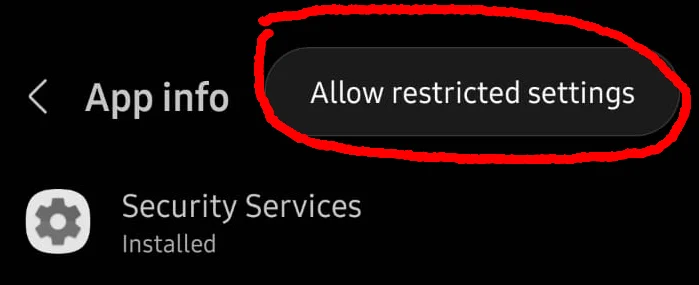
- Allow Restricted Settings: Tap the Three Dots (⋮) or Info icon in the top-right corner > Tap Allow restricted settings > Enter your screen lock PIN, pattern, or fingerprint.
- Activate Accessibility & Notification Access: Return to Settings > Accessibility and toggle GPS ON. Follow our Brand-by-Brand Accessibility Guide if you need the exact menu path for your phone.
1. Restricted Setting Alert
2. Tap Three Dots (⋮)
3. Allow Restricted Settings
Xiaomi / MIUI Note: On some Xiaomi/Redmi devices running MIUI 14 or HyperOS, if you don't see the 3-dot icon in App Info, look at the bottom of the App Info screen for "Allow restricted settings" or tap App permissions after triggering the popup once.
Android OS Limitations
Built-In Android 10–16 Privacy & OS Limitations
Beyond Restricted Settings, Google introduced platform-wide privacy rules across modern Android versions. Knowing these ensures realistic expectations on non-rooted devices:
Android 14, 15 & 16
- Privacy dot indicators appear in the status bar whenever microphone, camera, or location is accessed (cannot be hidden by any non-root app).
- Call recording audio quality depends on phone hardware/OS audio routing; speaker mode or compatible audio source helps on select devices.
- Remote screenshots require user confirmation on newer OS builds.
- Background clipboard access and silent Wi-Fi/camera toggles are restricted by Android OS.
Android 10, 11, 12 & 13
- Android 12+ displays green microphone/camera status indicators during active capture.
- Android 10+ restricts background clipboard monitoring when apps are not in focus.
- Android 10+ limits silent Wi-Fi toggling by third-party apps.
- Accessibility Service is mandatory for outgoing social chat capture without root—make sure battery savers don't kill it.